snowpub
snowpub 使用与开发文档
Quick Start
- Download the latest installer from Releases
- Install and open snowpub
- Open Settings → WeChat OA, enter AppID/AppSecret, click Test Connection
- Open Settings → Notebook, choose a folder as your notes root directory
- Open a
.mdnote → click the WeChat preview icon in toolbar → start writing - Click the publish icon → fill title/author/cover → Save Draft → Publish
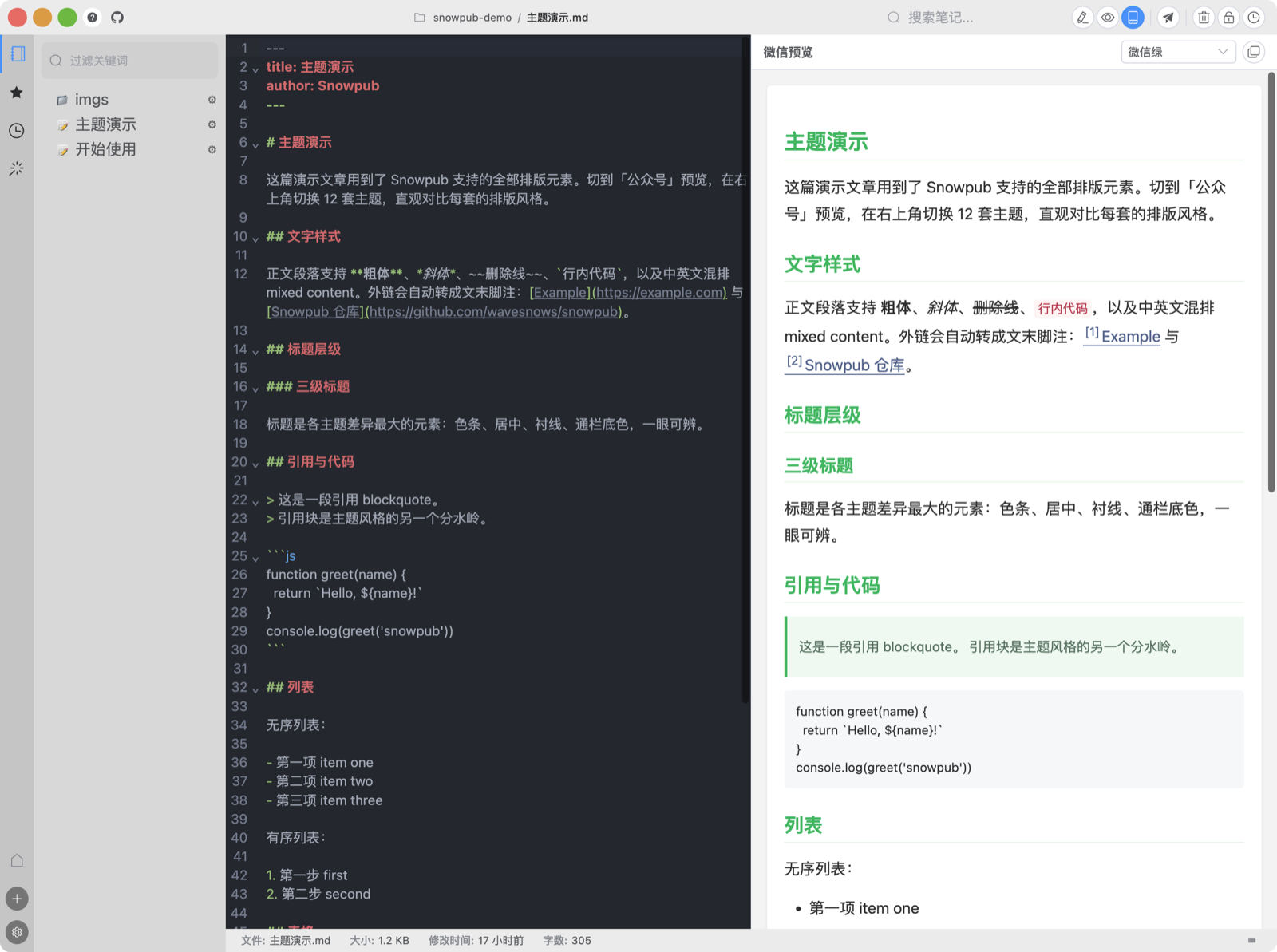
Features
- Dual-pane editor — Markdown (CodeMirror) on the left, WeChat-styled preview on the right
- WeChat themes — 12 built-in styles (Green / Black / Orange / Blue / Red / Serif / Cream / Morandi / Pink / Night / Bamboo / Plain), switchable anytime
- AI assistant — Side panel driving locally installed agent CLIs (Claude Code / OpenCode / OpenClaw, BYOA); presets for polish / title / digest / custom theme generation, replies insert back at cursor
- Publish to WeChat — Save drafts, publish image-text articles and image posts (newspic), query status via OA API
- Paste & drop images — Paste or drop images while writing; stored in the note’s
imgs/folder and uploaded to WeChat at publish time - Smart cover — First article image as suggested cover, ratio presets via WeChat
cover_info - Image library — Upload local images to OA material library, pick cover
- Draft sync — Fetch / delete / publish existing OA drafts
- Footnote references — External links auto-converted to bottom citations
- Git sync — Push/pull to GitHub or Gitee with one click
- Version history — Browse commit history, preview and restore any version
- Full-text search — Search across all notes instantly
- Terminal — Built-in terminal panel, auto-opens to current note’s directory
WeChat Publishing Setup
- Get AppID and AppSecret from OA console → Settings → Development → Basic Config
- Add your machine’s IP to the OA IP whitelist
- Open Settings → WeChat OA in snowpub, enter AppID/AppSecret
- Click Test Connection to verify
- Open a
.mdnote → click WeChat preview icon → write - Click publish icon → fill title / author / digest / cover → Save Draft → Publish
Local images in your Markdown are auto-uploaded to WeChat and
srcreplaced with OA URLs during publish.
Git Sync Setup
- Open Settings → Sync
- Select GitHub or Gitee
- Enter your username and Personal Access Token (requires
repopermission) - Add a remote notebook — snowpub will clone an existing repo or create a new one
AI Assistant
- Install at least one agent CLI: Claude Code, OpenCode, or OpenClaw
- Open the AI Assistant tab in the right sidebar — detected CLIs appear automatically
- Select text (or use the whole article) → click a preset: Polish / Title / Digest / Theme
- A generated theme can be saved and applied in one click; it lands in
<notebook>/themes/and appears in the preview theme dropdown
Keyboard Shortcuts
| Shortcut | Action |
|—|—|
| Ctrl+\ | Toggle terminal |
| Cmd/Ctrl+S | Save note |
| Cmd/Ctrl+Shift+P | Git push |
| Alt+↑/↓ | Navigate between notes |
| Cmd/Ctrl+?` | Show help |
快速开始
- 从 Releases 下载最新安装包
- 安装并打开 snowpub
- 打开设置 → 公众号,填入 AppID/AppSecret,点击测试连接
- 打开设置 → 笔记本,选择一个文件夹作为笔记根目录
- 打开
.md笔记 → 工具栏点微信预览图标 → 开始写作 - 点发布图标 → 填标题/作者/封面 → 保存草稿 → 发布
功能特性
- 双栏编辑 — 左侧 Markdown(CodeMirror),右侧微信样式实时预览
- 微信主题 — 内置 12 套主题(微信绿 / 科技黑 / 活力橙 / 知乎蓝 / 中国红 / 墨色衬线 / 暖阳米白 / 莫兰迪 / 樱花粉 / 暗夜 / 青竹 / 默认白),随时切换
- AI 助手 — 侧边面板调度本机 agent CLI(Claude Code / OpenCode / OpenClaw,BYOA),预设润色 / 起标题 / 写摘要 / 生成主题,回复可回插编辑器
- 公众号发布 — 通过官方 API 保存草稿、发布图文与图片消息(newspic)、查询发布状态
- 粘贴/拖拽传图 — 写作时粘贴或拖入图片,存入笔记
imgs/目录,发布时统一上传微信 - 智能封面 — 自动取首图为封面,三档比例走微信
cover_info - 图片素材库 — 本地图片上传到公众号素材库,文章封面图选择
- 草稿箱同步 — 拉取 / 删除 / 直接发布公众号已有草稿
- 外链转底部引用 — 自动将外链转为微信友好的底部脚注
- Git 同步 — 一键推送/拉取到 GitHub 或 Gitee
- 版本历史 — 浏览提交记录,预览并恢复任意版本
- 全文搜索 — 跨所有笔记即时搜索
- 内置终端 — 自动定位到当前笔记所在目录
公众号发布配置
- 在公众号后台 → 设置 → 开发 → 基本配置 获取 AppID 和 AppSecret
- 将本机 IP 加入公众号后台 IP 白名单
- 在 snowpub 打开设置 → 公众号,填入 AppID/AppSecret
- 点击测试连接验证
- 打开
.md笔记 → 点微信预览图标 → 写作 - 点发布图标 → 填标题 / 作者 / 摘要 / 选封面图 → 保存草稿 → 发布
发布时 Markdown 中的本地图片会自动上传到公众号并替换为公众号 URL。
AI 助手
- 至少安装一个 agent CLI:Claude Code、OpenCode 或 OpenClaw
- 打开右侧栏 AI 助手 页签 —— 已检测到的 CLI 自动列出
- 选中文字(或用全文)→ 点预设动作:润色 / 起标题 / 写摘要 / 生成主题
- 生成的主题可一键保存并应用,落盘在
<笔记本>/themes/,自动出现在预览主题下拉中
键盘快捷键
| 快捷键 | 操作 |
|—|—|
| Ctrl+\ | 切换终端 |
| Cmd/Ctrl+S | 保存笔记 |
| Cmd/Ctrl+Shift+P | Git 推送 |
| Alt+↑/↓ | 切换笔记 |
| Cmd/Ctrl+?` | 显示帮助 |
交流与反馈
- QQ 交流群:1121242452(问题反馈、主题分享、更新通知)· 一键加群
- Bug 与功能建议:GitHub Issues
Development
Prerequisites
- Node.js >= 14.17.0
- npm
Setup
npm install
npm run dev
Build
npm run build
Outputs to release/{version}/.
Tech Stack
- Electron 24 · Vue 3 · TypeScript · Vite
- Element Plus · CodeMirror 6 · EditorJS
- simple-git · electron-updater